 Visual Talker
 manual
Everything in the app's Brief Guide, and more. Visual Talker 7 for iPhone and iPad.
1. Getting started
Visual Talker opens on Home, ready to talk. It comes with 126 words with pictures and 87 everyday sentences, so you can start without setting anything up.
- The Brief Guide appears the first time you open the app. You can read it again any time in Settings → Brief Guide.
- The tabs along the bottom are Home, Sentences, Words, History, and Settings.
- Coming from the previous Visual Talker? When the app finds your old data, Settings → Import Old Data appears. It brings your words, sentences, pictures, and recordings across. The old data is only read, never changed.
- No account is needed. Everything stays on your device and works offline. Sign in only if you want Cloud sync.
2. Home: build and speak
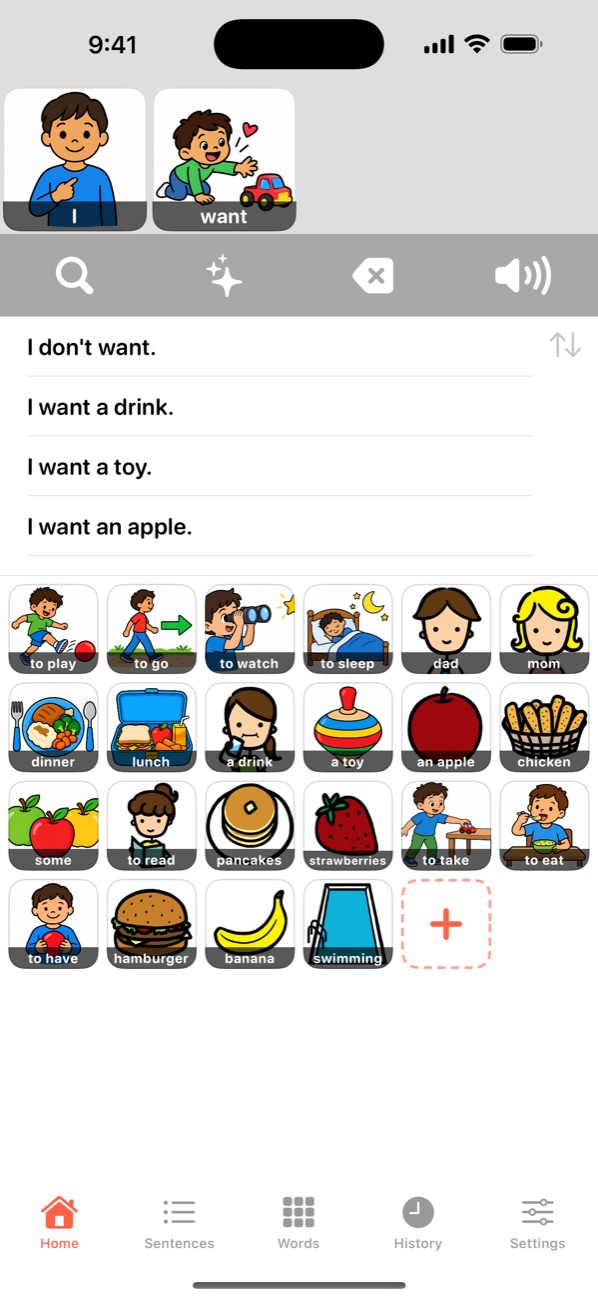
Build a sentence
- Tap word tiles. Each one is spoken and added to the strip at the top.
- As you add words, the tiles reorder: the words that usually come next move to the front.
- Saved sentences that start the same way appear under the controls. Tap one to put the whole sentence on the strip and hear it.
- Tap Speak to say the sentence. Each tile lights up as it's spoken.
A sentence you speak for the first time is saved, and its words and their order are learned. Next time it's one tap away.
Tap a tile on the strip to hear just that word.
The controls
- SearchType to find words and sentences. Tap a result to use it; Cancel closes search.
- New SentenceClears the strip so you can start a new sentence.
- Delete Last WordRemoves the last tile from the strip.
- SpeakSays the sentence on the strip, or plays its recording if it has one. New sentences are saved.
- Quick wordThe + tile at the end of the words. Type a word, or a few, that isn't on a tile yet; it goes on the strip. Words you already have are used with their pictures.
- SortOrder tiles and sentences A to Z, Z to A, Recently Added, or Most Used. Home remembers its order.
3. Sentences
Every saved sentence, searchable and sorted.
- Tap a sentence to edit it: its words, a picture, and your own recording.
- Speak it by swiping right on it, or touching and holding it and choosing Speak.
- Delete by swiping left, or touching and holding it and choosing Delete.
- Add a sentence with + at the top. Its words are learned straight away.
Changing a sentence also updates the words it suggests on Home. Deleting one removes the words it taught, unless another sentence uses them.
4. Words
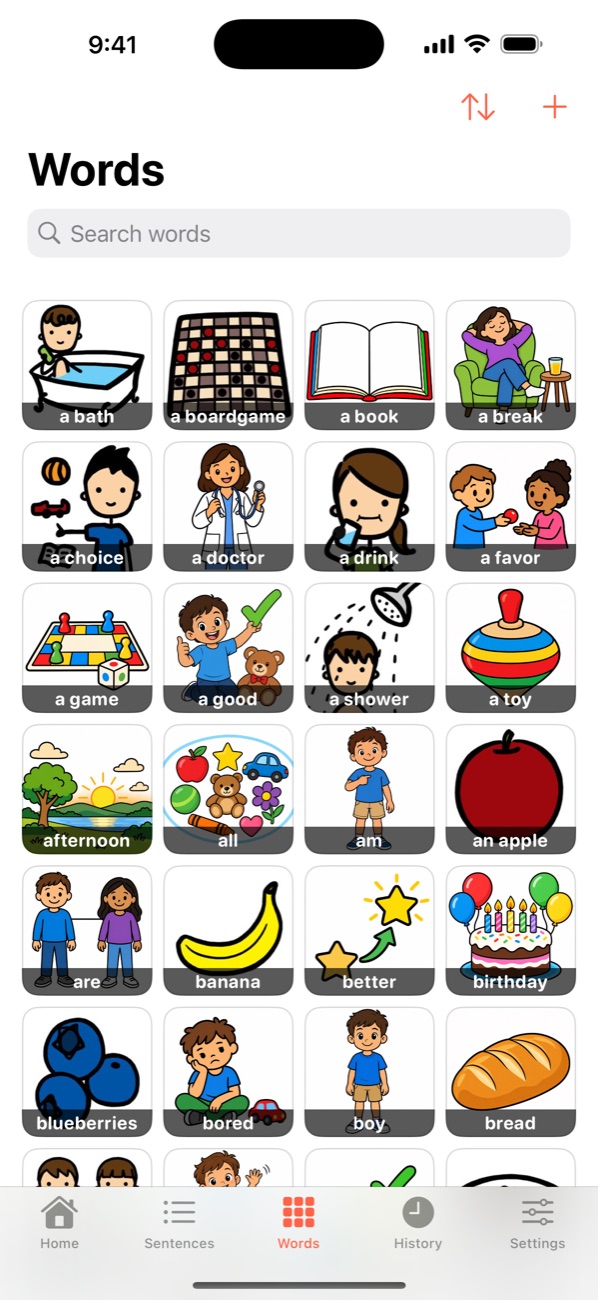
- Tap a word to hear it, or its recording.
- Touch and hold a word to edit it: the text, its picture, and your voice. You can delete it there too.
- Add a word with + at the top.
- A word can be a few words that belong together, like "to play" or "a drink". It stays one tile.
- Tiles about the same thing share a picture: "the hospital" uses the picture of "to the hospital", including your own photo. A new word gets it automatically, and the editor offers Use Picture from “…”.
5. Pictures and your voice
The editor opens when you add a word or sentence, tap a sentence, or touch and hold a word. Listen plays it as it is now.
Picture
- Choose Photo from your library, or Take Photo with the camera (iPhone and iPad).
- Starter Pictures: the pictures that come with the app.
- Use Visual Talker Picture: shown for a starter word that has a different picture. It puts back Visual Talker's own, so the tile matches the rest.
- Make a Picture: a new picture drawn for the word. See Make a Picture.
- Remove Picture leaves the tile as text.
Voice
- Record Voice, then Stop Recording. Your recording plays instead of the device voice, on Home and everywhere else.
- Play Recording to check it, Record Again to replace it, or Use Spoken Voice Instead to go back to the device voice.
Tap Save (or Add) to keep your changes, or Cancel to leave them.
6. History
Every sentence spoken with Speak, newest first.
- Tap one to say it again.
- Swipe left to remove one, or Clear History to remove all of it. Saved sentences and words are kept.
- Search and sort work as on the other tabs.
History is a good way for a parent, teacher, or therapist to see what someone actually says. It stays on the device unless you turn on Sync History.
7. How it learns
- Each spoken sentence teaches its words and the order they come in. On Home, the next word you're likely to need moves to the front.
- Tapping a word counts too, so the words you use most rise under Most Used.
- Learning happens on your device. Nothing you say is sent anywhere, unless you turn on Cloud to share it between your own devices.
- Settings → Restore Visual Talker Items brings back starter words and sentences you deleted. Nothing you added is removed.
- Words brought across from the previous Visual Talker get Visual Talker's pictures when they had none. Settings → Use Visual Talker Pictures also replaces photos on starter words, for one consistent look.
8. Settings
| Setting | What it does |
|---|---|
| Speak in Language | The voice: your device's language, American, Canadian, Australian, or British English, Deutsch, Français, 한국어, Español (México), or Русский. A sample plays when you choose. |
| Sound on Silent Mode | iPhone and iPad: speak even when the Ring/Silent switch is on silent. On by default. |
| Cloud | Sign in with Apple, sync status, and Sync Now. See Cloud sync. |
| Visual Talker Plus | Your plan, pictures left this month, Restore Purchases, and Manage Subscription. See Visual Talker Plus. |
| Brief Guide | The short guide from the first launch. |
| Restore Visual Talker Items | Brings back deleted starter words and sentences, and gives starter words without a picture their picture. |
| Use Visual Talker Pictures | Gives every starter word Visual Talker's own picture, replacing photos and older pictures, so all tiles share one style. Words you added keep their pictures; recordings don't change. It asks first and says how many words will change. |
| Import Old Data | Shown when data from the previous Visual Talker is found on the device. |
| About | Version, visualtalker.com, Feedback, Privacy Policy, and Support. |
9. Cloud sync
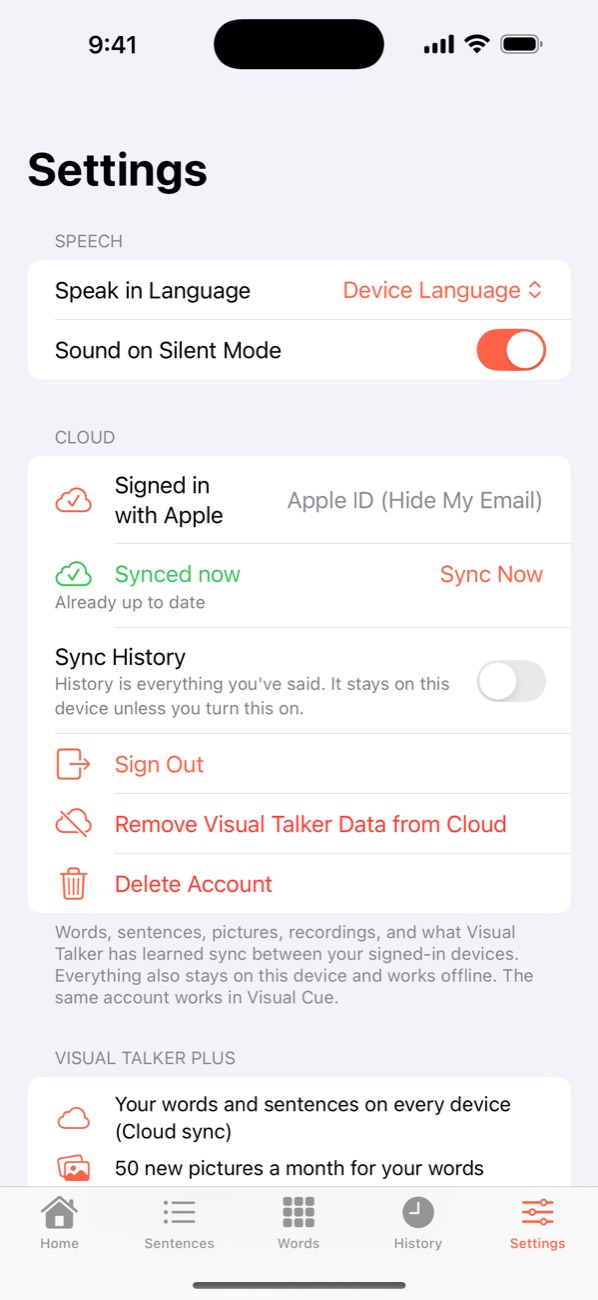
Turn it on
- Go to Settings → Cloud and tap Sign in with Apple. You can hide your email; Visual Talker doesn't need it.
- Sign in with the same Apple ID on each device.
- If your account already has a library and this device has words of its own, choose:
- Use My Account's Library: this device takes the account's words and sentences. Its own are backed up first.
- Combine Both: keeps both, and adds up what each device learned.
What syncs
Words, sentences, pictures, recordings, the voice and Home's sort order, and what Visual Talker has learned. If two devices learn the same word while offline, both counts are kept. History syncs only if you turn on Sync History.
When it syncs
When you open the app, when you come back to it, and a few seconds after a change. Sync Now syncs straight away and shows each step ("Sending 3 changes…", "Getting changes…"), then what it did: Already up to date, or for example Sent 1 change, received 4 changes. If it can't sync, it says why.
Sign out, remove, delete
- Sign Out: this device stops syncing. Everything on it stays.
- Remove Visual Talker Data from Cloud: removes your Visual Talker library from Cloud and pauses syncing on every device until you choose Sync Now. Your devices keep everything, and your account and Plus stay.
- Delete Account: Apple asks you to confirm, then your account and everything synced from Visual Talker and Visual Cue are deleted, and Sign in with Apple is stopped for Visual Talker. What's on your devices stays.
10. Visual Talker Plus
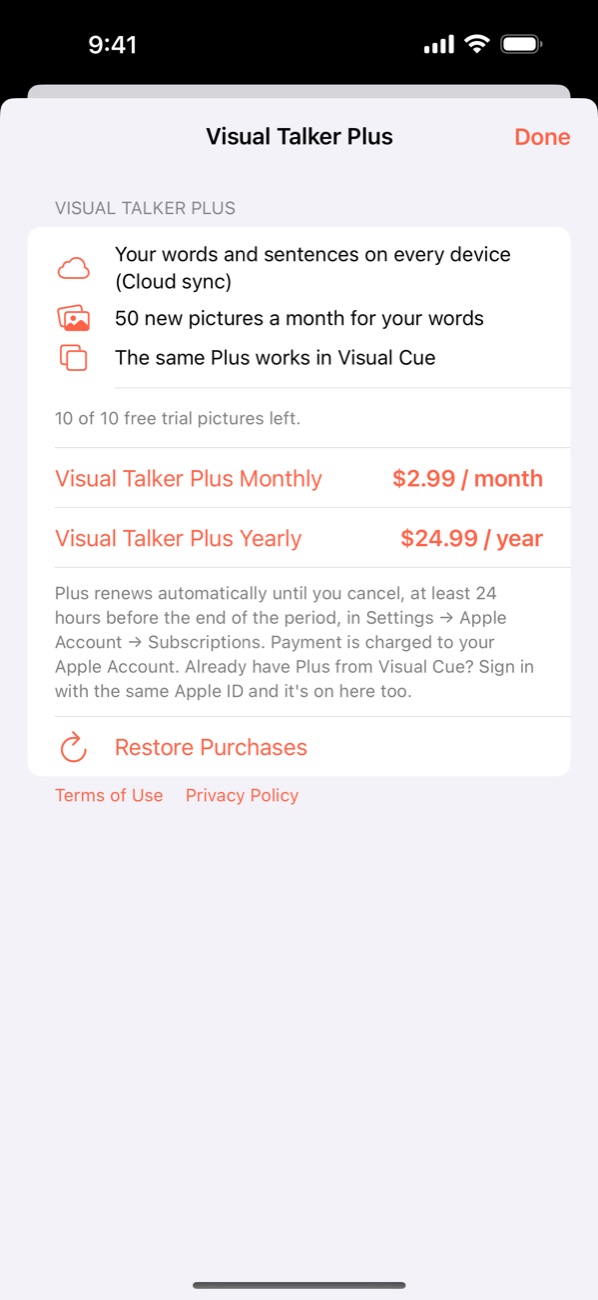
- Included: Cloud sync and 50 new pictures a month with Make a Picture, on every device.
- Try it first: sign in with Apple and you get 10 free pictures, no subscription needed.
- Buy it in Settings → Visual Talker Plus, monthly or yearly, after signing in. It renews until you cancel.
- One Plus everywhere: the same subscription works on iPhone and iPad, and in Visual Cue, with the same Apple ID. If you already have Plus from Visual Cue, just sign in.
- Family Sharing is on: family members use it with their own Apple ID.
- Restore Purchases after reinstalling or on a new device. Manage Subscription changes or cancels it.
- When Plus ends, everything on your device stays, including every picture already made. Cloud and new pictures pause.
11. Make a Picture
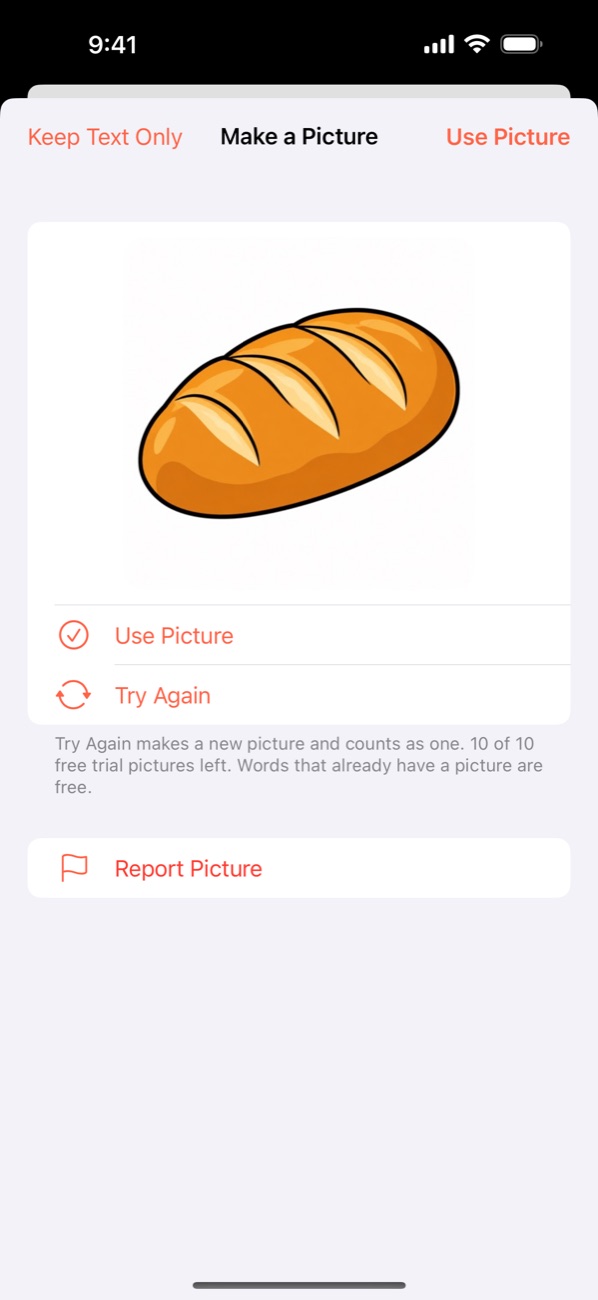
- Open the editor for a word (on Words, touch and hold it) and tap Make a Picture.
- Choose What is it?: a person, a place, food or drink, an animal, a thing, something you do, a describing word, a feeling, something you say to people, or Not sure. It helps draw the right kind of picture: a person shown with their role, a place as its building.
- Tap Make a Picture. It can take up to a minute. You can close the screen: when the picture is done, it goes on the word and you're told ("The picture for “kite” is ready"), with a notification if you allow them.
- Choose Use Picture, Try Again (a new picture, which counts as one), or Keep Text Only.
- Made once, shared by everyone: if someone already made a picture for the word, you get it at once and it doesn't count. Only the word is sent, never your photos.
- Waiting for review: some words, like ones asking for writing or a long scene, are checked by AME before a picture is made for every family. Ask again later.
- "That word can't be made into a picture": some words aren't suitable for pictures for children. Use a photo instead. It isn't counted.
- Report Picture if a picture is wrong or not right for children. AME looks at every report and can remove it for everyone.
- Pictures left this month, and when more come, are shown in Make a Picture and in Settings → Visual Talker Plus.
12. iPad, and Mac (coming)
- One purchase covers iPhone and iPad, and the Mac version will be included when it arrives. Plus works on all of them.
- iPad: tiles grow with the screen. Everything else works as on iPhone.
- Mac (coming): click where you'd tap. On Words, click to hear a word and hold the click to edit it; right-click for Edit and Delete. Right-click a sentence for Speak and Delete. The tabs are in the sidebar.
13. Accessibility
- VoiceOver reads every tile and control. On Words, double-tap speaks a word; swipe up or down for Edit.
- Reduce Motion replaces the tile press animation with a gentle fade.
- Your own recordings play instead of the device voice, for a voice that sounds familiar.
14. Privacy
- No account needed, no ads, no tracking. Without Cloud, nothing leaves your device.
- With Cloud, your library is stored for your account so your devices match. History is included only if you turn on Sync History.
- Make a Picture sends only the word. Pictures are shared by everyone who asks for the same word.
- Delete your account any time in Settings → Cloud. Full details: privacy policy.
15. Troubleshooting
- I don't hear anything.
- Turn the volume up. On iPhone or iPad, check that Settings → Sound on Silent Mode is on if the Ring/Silent switch is on silent. A word with its own recording plays the recording.
- The voice speaks the wrong language or accent.
- Choose it in Settings → Speak in Language. "Device Language" follows your device.
- Sync Now says "Cloud sync needs Visual Talker Plus".
- Cloud is part of Plus. Tap See Visual Talker Plus to subscribe, or Restore Purchases if you already have it, including Plus from Visual Cue with the same Apple ID.
- I bought Plus, but it isn't on.
- Make sure you're signed in at Settings → Cloud with the Apple ID you use for Visual Talker, then tap Restore Purchases.
- My other device doesn't show a new word.
- Open the app on both devices, or tap Sync Now on each. Both need the same Apple ID in Settings → Cloud.
- A picture says "Waiting for review".
- AME checks some words before making a picture everyone can see. Ask again later; it won't count again.
- Starter words or sentences are missing.
- Settings → Restore Visual Talker Items brings back the ones that were deleted.
- I'm moving from the old Visual Talker.
- Settings → Import Old Data, on the device that has the old app's data.
Still stuck? Write to feedback@amemobile.ca (Settings → Feedback includes your version), or visit amemobile.ca/support.